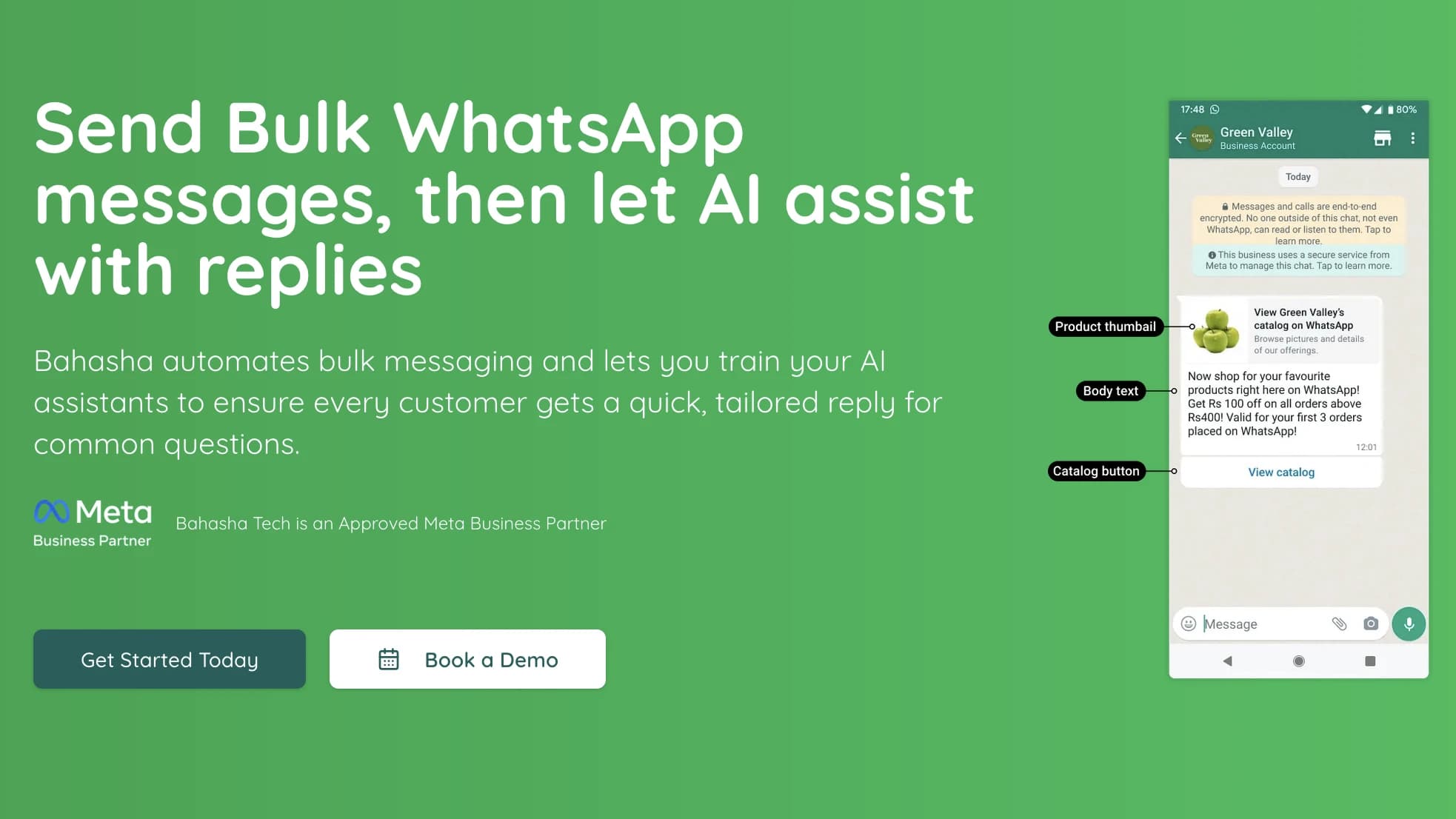
As a Bahasha user, you’re able to run powerful WhatsApp campaigns, schedule templates, and automate responses — all thanks to our partnership with Meta (we’re an official Meta Business Partner). But before you can go live with sending messages, Meta requires you to add a payment method to your WhatsApp Business Account.
Your card details are not stored or handled by Bahasha. All payment information is securely processed by Meta through your WhatsApp Business Account. We don’t see or manage your card at any point.
Even though you interact with Bahasha to manage your WhatsApp communication, Meta handles the actual delivery of messages, and they charge for certain types of conversations:
You’re only charged when you start a conversation using a template (like a campaign or notification message).
Replies to customer messages are completely free — as long as they message you first.
Pricing is based on conversations, not individual messages — for now. This means:
When you send a message using a template, it opens a 24-hour conversation window with that user.
You can send as many messages as you want within that window at no extra cost.
You can always check Meta’s official pricing here: Meta’s WhatsApp Business Pricing
From July 1, 2025, Meta is switching from conversation-based pricing to per-message pricing — and the good news is, pricing will be much lower and more flexible. This means:
You’ll only be charged for exactly what you send.
It gives you more control over costs, especially for smaller or more personalized interactions.
Here’s how to make sure your account is ready:
Log in to Meta Business Manager.
Go to the Settings (gear icon at bottom left ) > Accounts > WhatsApp Accounts.
Find your WhatsApp Business Account and click on it ( usually created for you through your Bahasha account ).
In the Summary tab, find and click Payment settings button located at the bottom of the page
Click Add payment method and follow the instructions to add your card.
Once added, make sure it’s set as the default payment method.
Click the 3-dots next to your listed card then select "Set as Default"
Once that’s done, you’re all set to start sending and automating with Bahasha.