Bahasha makes it easy for businesses to send bulk WhatsApp messages and engage customers through AI-powered chat assistants. Whether you're promoting a campaign or responding to customer inquiries at scale, this guide will walk you through how to get started on Bahasha—from sign-up to sending your first message.
To begin using Bahasha, head to the Bahasha registration page and create your account. Once registered, you'll gain access to the main dashboard where you can manage contacts, message templates, campaigns, and AI assistants.
The dashboard provides a simple and intuitive layout. On the left sidebar, you'll find navigation items like:
Bulk WhatsApp
Reports & Analytics
Create Templates
Train and manage AI Assistants
Contacts List & Import Tools
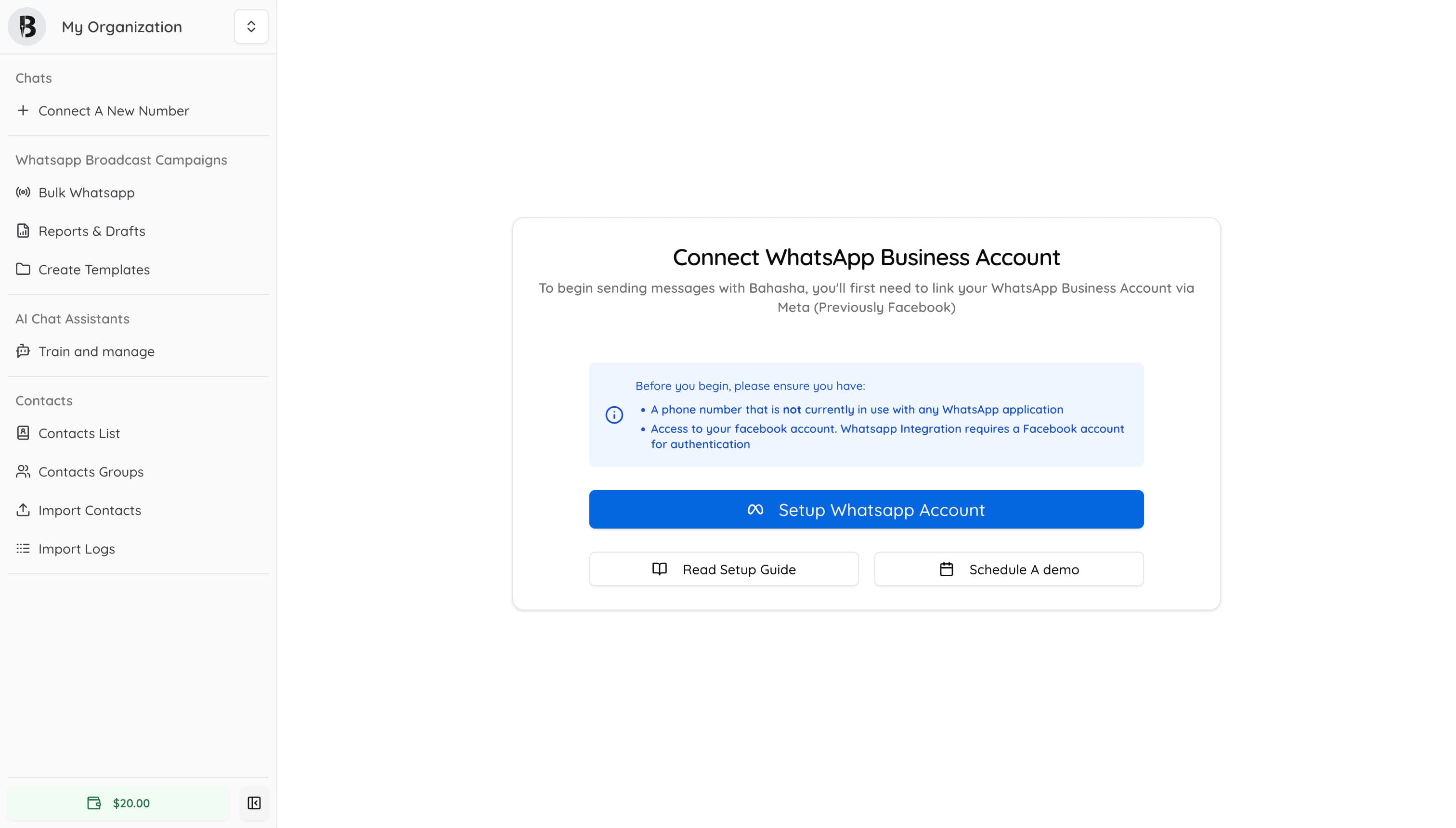
Bahasha Dashboard for a newly created Account
You're now ready to connect your WhatsApp Business Account.
To send messages via WhatsApp, you must connect your WhatsApp Business Account (WABA). This is a requirement by Meta (formerly Facebook) for businesses that wish to use the WhatsApp Business API.
A WABA is your official business profile on WhatsApp. It allows you to:
Send messages to customers in a scalable, automated way
Display your business name, logo, and verified status
Bahasha uses Meta's Embedded Signup Flow, a smooth and secure way to set up your WABA in just a few steps—without leaving Bahasha. Here's what to expect:
Click the "Setup Whatsapp Account" button in your dashboard.
Log in with your Facebook account.
Choose or create a Meta Business Account.
Register your phone number for WhatsApp (make sure it's not already linked to WhatsApp or WhatsApp Business).
Grant permission to Bahasha to manage your WhatsApp integration.
🔐 Important: Ensure your number is unused in WhatsApp or WhatsApp Business
Once completed, you'll see your chosen phone number updated in your dashboard.
WhatsApp only allows pre-approved templates to be used for outbound messages (especially if the customer hasn't recently messaged you). This is to prevent spam and maintain high trust in the WhatsApp platform.
Templates are reusable message formats that you create and submit for approval. They can include:
Text with variables (e.g.,
Hi {{name}}, your order #{{order_id}} is confirmed
)
Media such as images, documents, or videos
Buttons for quick replies or CTAs
In Bahasha, go to "Create Templates" to design and submit your templates. Once approved by WhatsApp, they're ready to use in your campaigns.
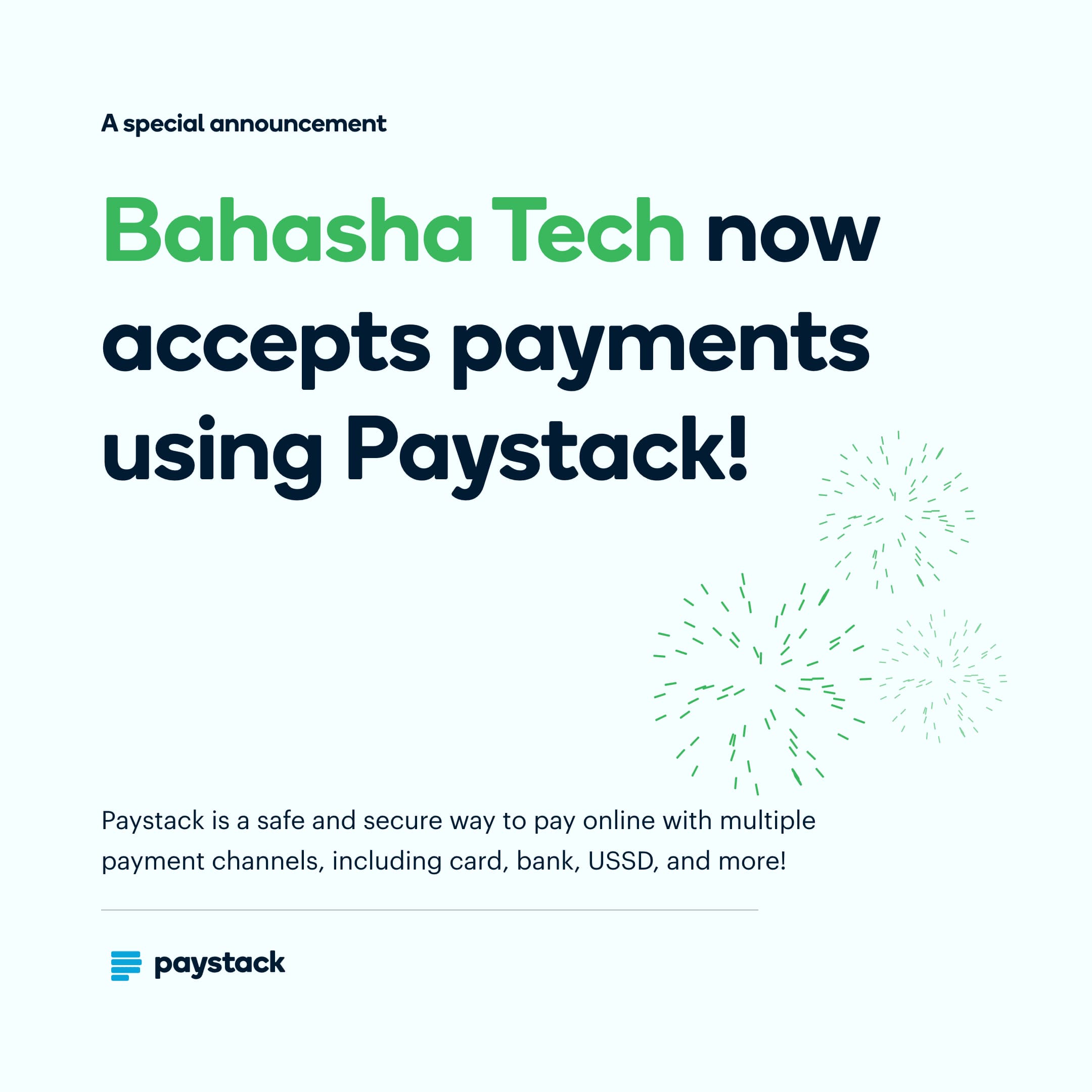
Bahasha Uses Paystack for payments
Before sending messages, you'll need to fund your Bahasha wallet. This covers the cost of messaging as described in Bahasha's Pricing
Head to the wallet section at the bottom-left of the dashboard and click on top of your balance. You can make payments using methods supported by Paystack
Card
Mobile Money
Apple Pay
Once topped up, your account balance will be visible and automatically used during message sending or AI assistant usage.
Now comes the fun part—launching your campaign!
Navigate to Bulk WhatsApp and follow the Send Wizard:
Select a WABA and approved message template
Choose your contact group or upload a contact list
Customize message variable (e.g., names, order IDs)
Preview and send
You can also schedule campaigns for future dispatch or send them in controlled batches for better performance and monitoring.
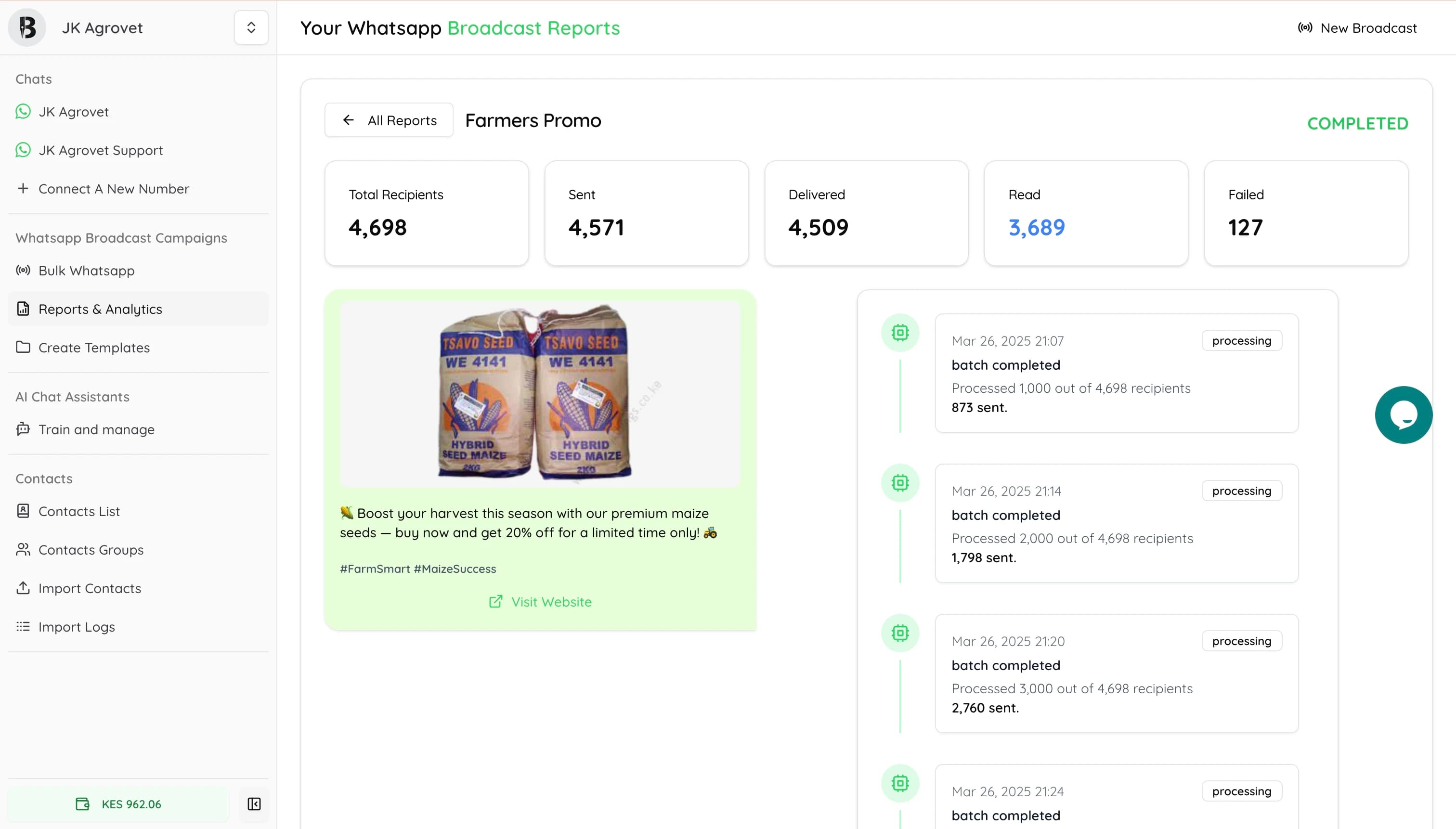
Bahasha provides analytics after each campaign, showing you delivery rates, click rates (for buttons), and read receipts.
Analytics Dashboard For Tracking Sent Messages
Want to reply to customers automatically or handle support at scale?
Bahasha allows you to build and connect AI Chat Assistants that reply on your behalf. Go to Train and Manage under the AI Chat Assistants section to:
Create an assistant
Add instructions (FAQs, product info, return policies)
Simulate and test replies
Once your assistant is trained, you can attach it to a WABA, so when users message your WhatsApp line, the assistant can instantly respond based on your setup.
This is especially powerful for:
Customer support
Order follow-ups
Handling FAQs at scale
With your WABA linked, templates approved, and balance topped up, you're ready to start engaging your audience via WhatsApp. Whether you're promoting a sale or answering customer queries, Bahasha gives you all the tools to do it efficiently.
Need help? Use the support chat on the right of the dashboard or reach out to our support team at [email protected].